Chapter 7: Collection and Analysis of Rate Data
Polymath Non-Linear Equation Solver Tutorial
This tutorial will explain the use of Polymath's non-linear equation solver.
First, launch Polymath. You should see a menu bar at the top of the scren that
looks like this.

Click on the NLE button ( ) to bring up the menu for the non-linear equation solver.
The menu should look like this.
) to bring up the menu for the non-linear equation solver.
The menu should look like this.
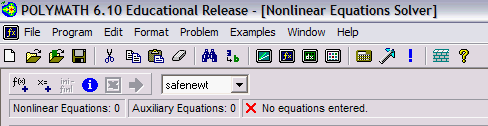
From here we need to enter our non-linear equations, so click on the "
f(x)+
"
button. You should see a screen that looks like this.
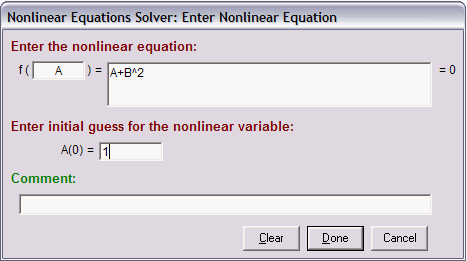
Note that the no matter what variable you enter in the "f( )" box, the equation
that you input will be solved to find when it equals 0. Make sure that the variable
you do enter into the "f( )" box is one of the variables that you want Polymath
to vary in searching for a solution to the NLE. Enter an initial guess for the variable and click done
to go back and add
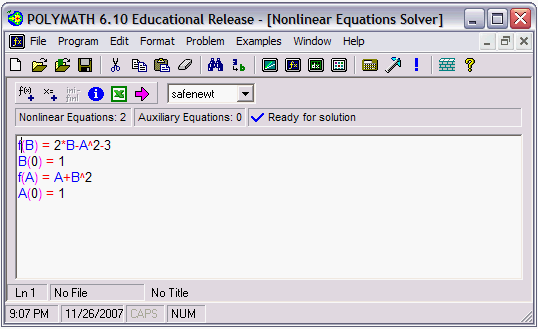
more equations. When you are done entering equations, the screen should look
like this.
When you are ready to run the solver, just click the pink Solve arrow. You should
get a report window that looks like this.
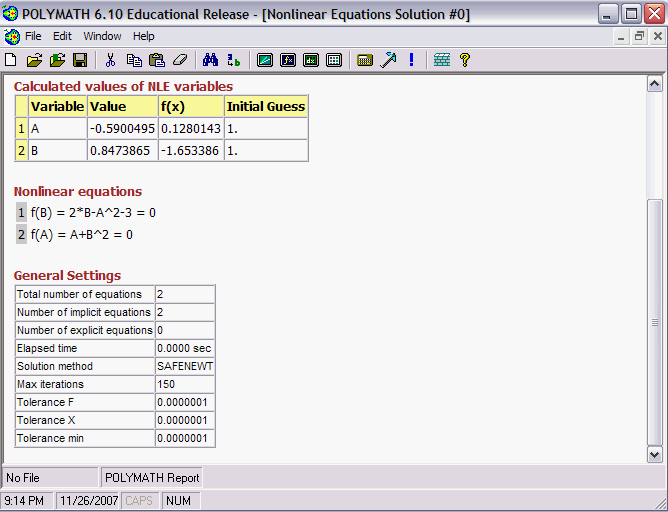
If the window says something about the solver not converging, one of two things
is happening. Either your guesses for the variables are too far off from their
true values, which means you need to enter better guesses, or the system you
have entered is insolvable, so you should check your equations for errors.
This is basically all you need to get started using Polymath to solve NLEs.
Return to Chapter Outline.