Chapter 3: Rate Laws


Polymath Regression Analysis Tutorial

First, launch Polymath, either from the CD included with the course textbook, or from your hard drive if you have previously installed Polymath. You will now see a window that looks like this:

Polymath 6.10 Educational Release interface. The toolbar contains options such as File, Program, Window, and Help, along with various icons for functions like saving, cutting, pasting, and mathematical operations.


To perform regression calculations click on the Regression (A rectangular icon with a black border containing a grid of small colorful squares arranged in rows and columns. The squares are purple, blue, green, and red, representing a data matrix or graph visualization.) button in the toolbar. You will see a table that looks like this:
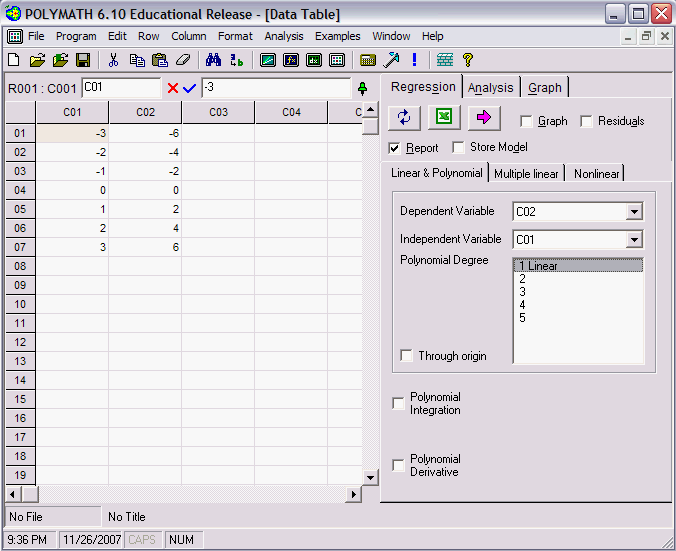
Polymath 6.10 Educational Release Data Table window. A table is displayed with columns labeled C01, C02, C03, and C04, and rows filled with numerical data. On the right, a panel labeled 'Regression, Analysis, Graph' is shown, allowing the user to select dependent and independent variables, polynomial degree, and other options.

You can either type your data directly into this table, or copy it in from another spreadsheet.

In the regression screen you can select the type of regression that Polymath will perform. You can select the output of the regression with a graph, residuals and report. Clicking the pink Solve button causes the regression to be carried out.
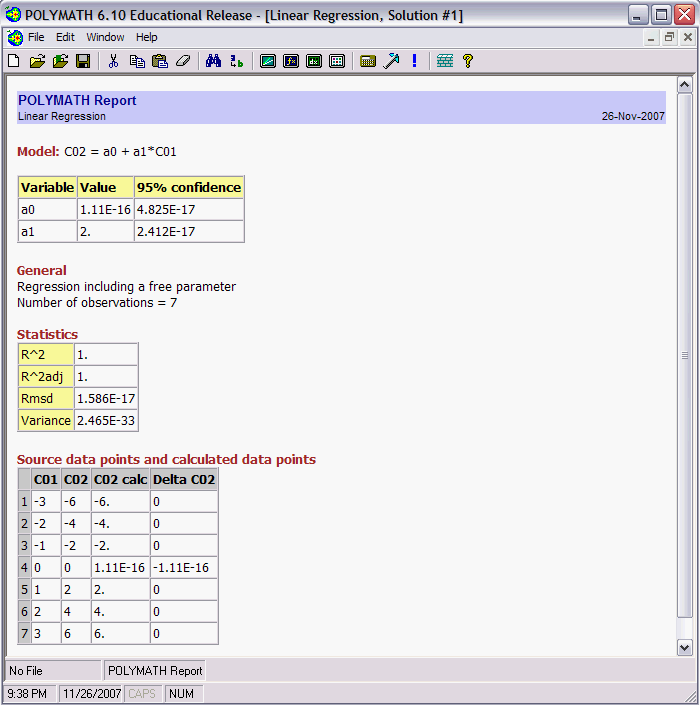

Screenshot of the POLYMATH 6.10 Educational Release regression report. The report includes the model equation C02 = a0 + a1*C01, with parameters: a0 = 1.11E-16 and a1 = 2, along with their 95% confidence intervals. General details note 7 observations. Statistics include R^2 = 1, R^2 adj = 1, Rmsd = 1.586E-17, and Variance = 2.465E-33. Below, a table displays columns for C01, C02, C02 calc, and Delta C02, with calculated and source data points.

This is a report of the regression data. It includes the model, the values of the model parameters, the statistical confidence of the parameters, and several other staistics. Sometimes when the model should have values of 0 they show up as very small numbers, as is the case here for "a0".


The regression calculator can also do other regressions, like quadratics and even very complicated non-linear equations.
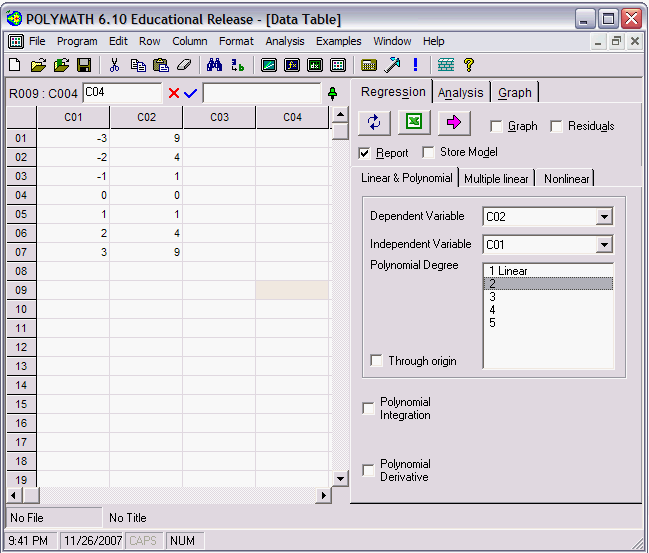
Screenshot of POLYMATH 6.10 Educational Release displaying a data table and regression panel. The table includes columns C01, C02, C03, and C04, with example data filled in rows 1 through 7. The regression panel on the right allows users to select dependent and independent variables (C02 and C01, respectively), choose polynomial degrees from linear to 5, and enable options such as 'Through origin,' 'Polynomial Integration,' and 'Polynomial Derivative.' Tabs for Regression, Analysis, and Graph are visible at the top of the panel.

By selecting appropriate model, you should be able to find a good fit to your data.
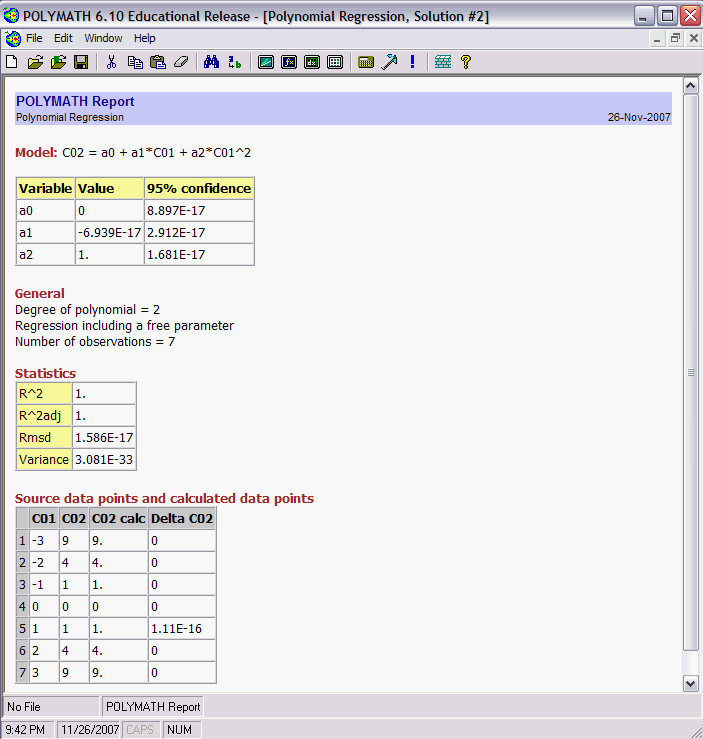
Screenshot of POLYMATH 6.10 Educational Release displaying a polynomial regression report. The model is defined as C02 = a0 + a1*C01 + a2*C01^2. The table lists variables a0, a1, and a2 with their values and 95% confidence intervals. The general section notes the degree of the polynomial as 2, with 7 observations. Statistics such as R^2, R^2 adj, Rmsd, and Variance are shown. Below, the source data points and calculated data points for columns C01, C02, and Delta C02 are presented in a table format.


If you dont know what model you should use, try looking at a graph of your data by clicking on the "Graph" tab on the right of the screen. The graph creator window will come up.
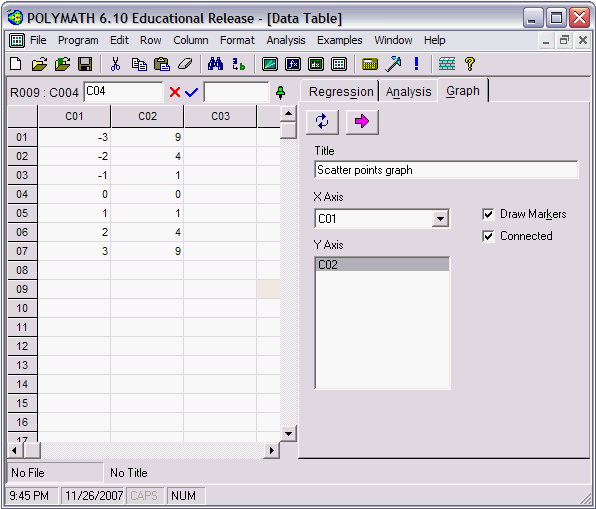
Screenshot of POLYMATH 6.10 Educational Release displaying the data table and graph setup for creating a scatter points graph. The data table contains columns C01, C02, and C03 with sample numerical data. On the right panel, the Graph tab is selected. A title is entered as 'Scatter points graph,' and the X Axis is set to C01 while the Y Axis is set to C02. Options for 'Draw Markers' and 'Connected' are checked.

By selecting the series that you wish to graph and clicking on the pink Solve arrow, a graph of the data will be displayed.
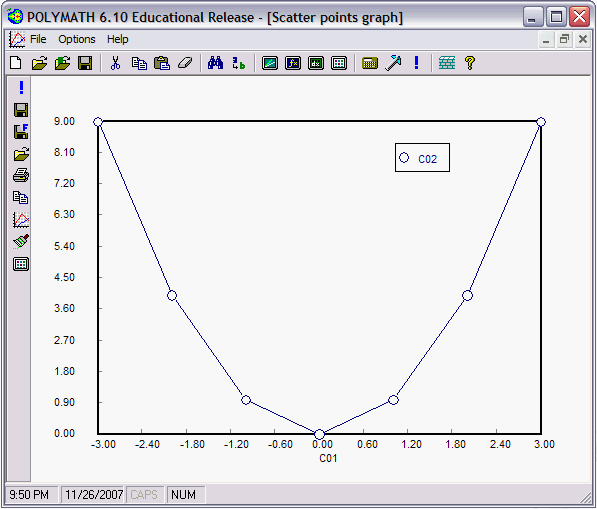
Screenshot of POLYMATH 6.10 Educational Release showing a scatter points graph. The graph plots C01 on the x-axis and C02 on the y-axis. The data points are represented as circles connected by a smooth line. The legend indicates 'C02,' and the graph shows a parabolic trend with values starting high, decreasing to a minimum, and then increasing again.


Polymath has much more to offer than just these features, so be sure to try different things out to see how they work.